senseBox App
senseBox App
Apple, das Apple-Logo und iPhone sind Marken von Apple Inc.
Google Play und das Google-Play-Logo sind Marken von Google LLC.
To use the senseBox app for transferring program code, you first need to complete a few preparation steps.
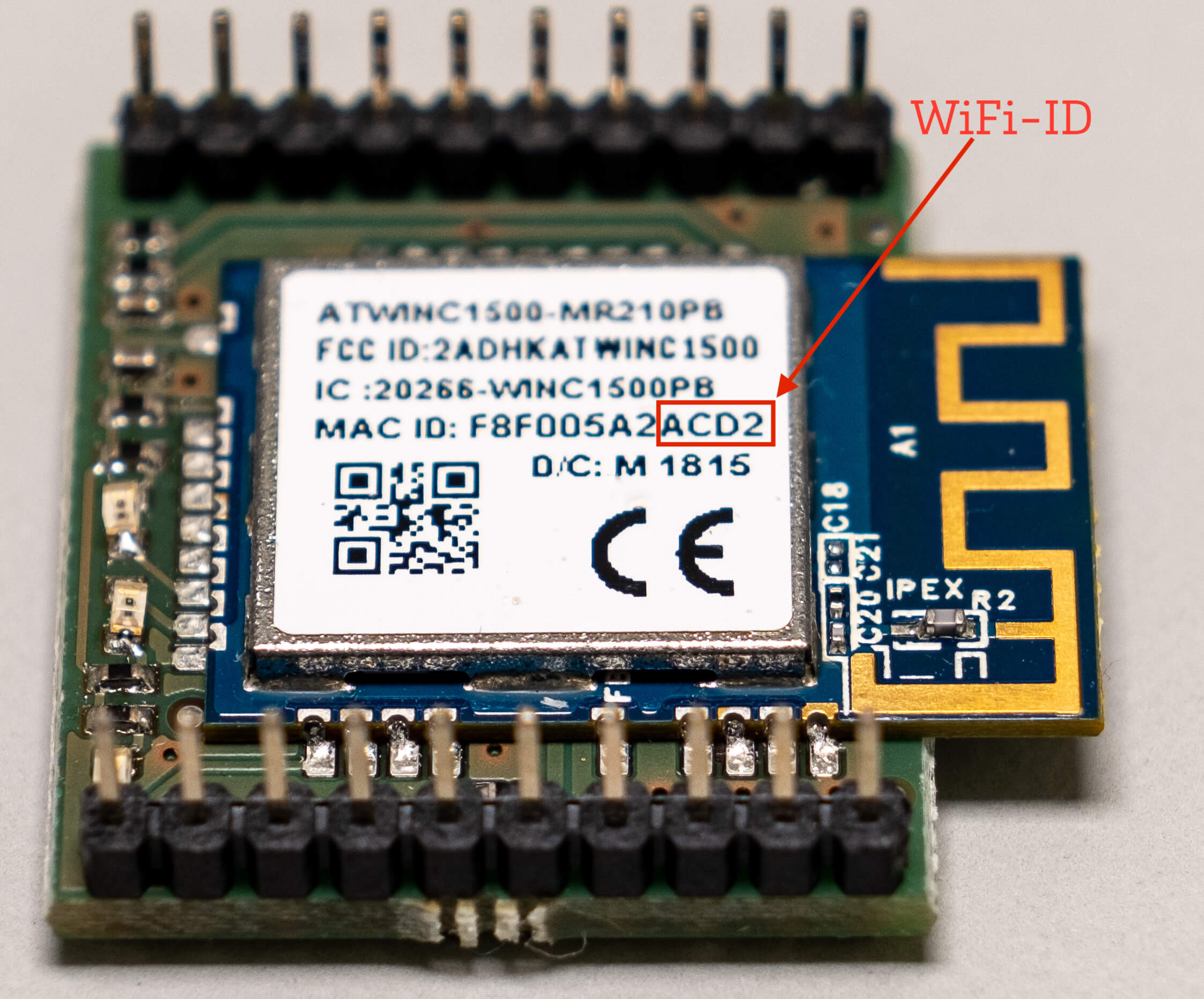
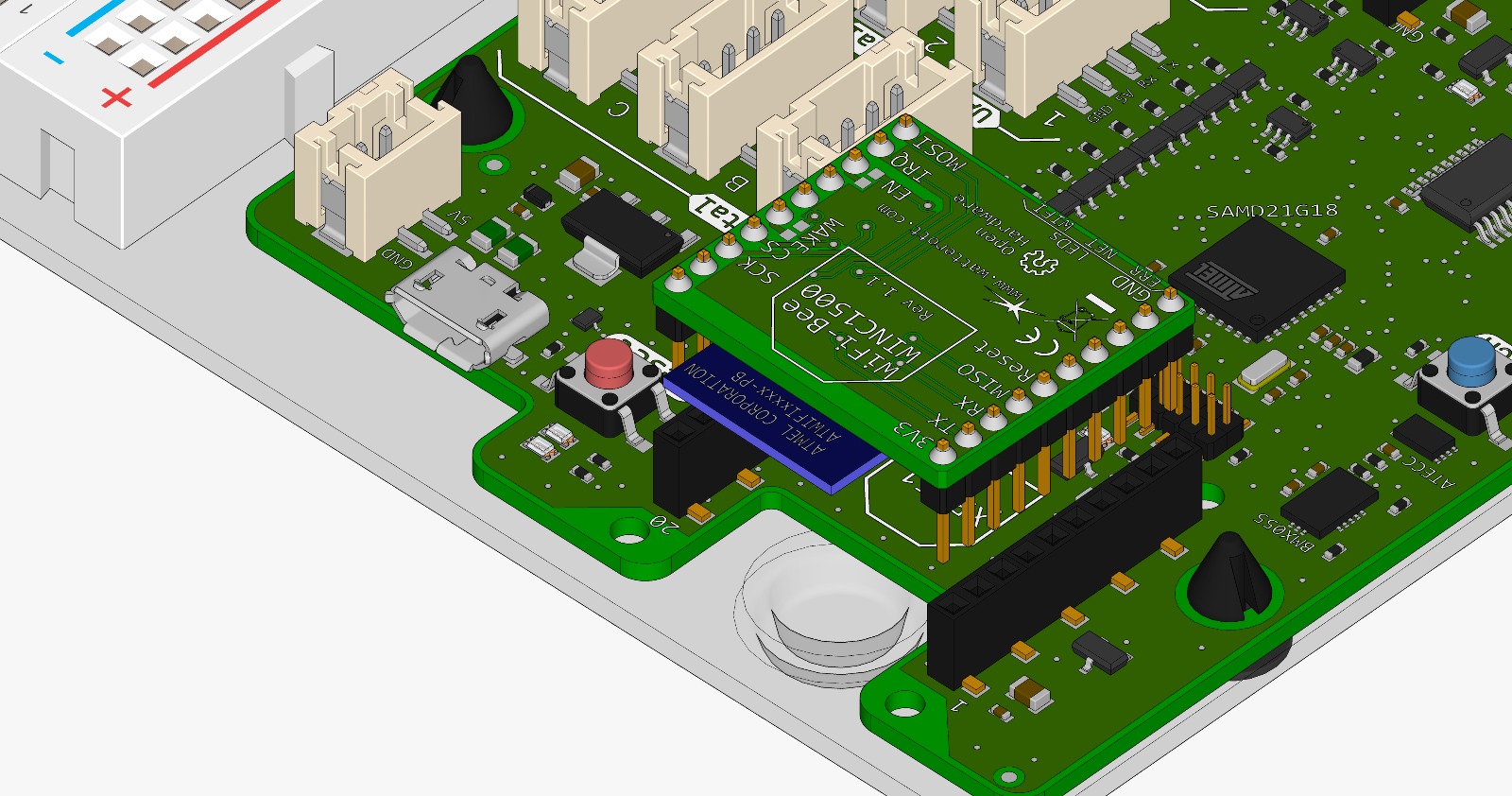
To connect to the senseBox, you will later need your WiFi ID. The WiFi ID is a unique identifier that you can enter in the senseBox Connect app. You can find the WiFi ID of your senseBox or WiFi Bee on the back side. The ID consists of the last 4 characters of the MAC address of your WiFi Bee. It is best to write down your WiFi ID so you can easily find it later.
Copy the OTA sketch to the senseBox MCU using your computer.
This step only needs to be performed once as long as you program your senseBox MCU via the tablet. If you later upload a program to the senseBox MCU again using a computer, this step must be repeated.
Connect the senseBox MCU to a power source. You can use a USB power adapter or a power bank.
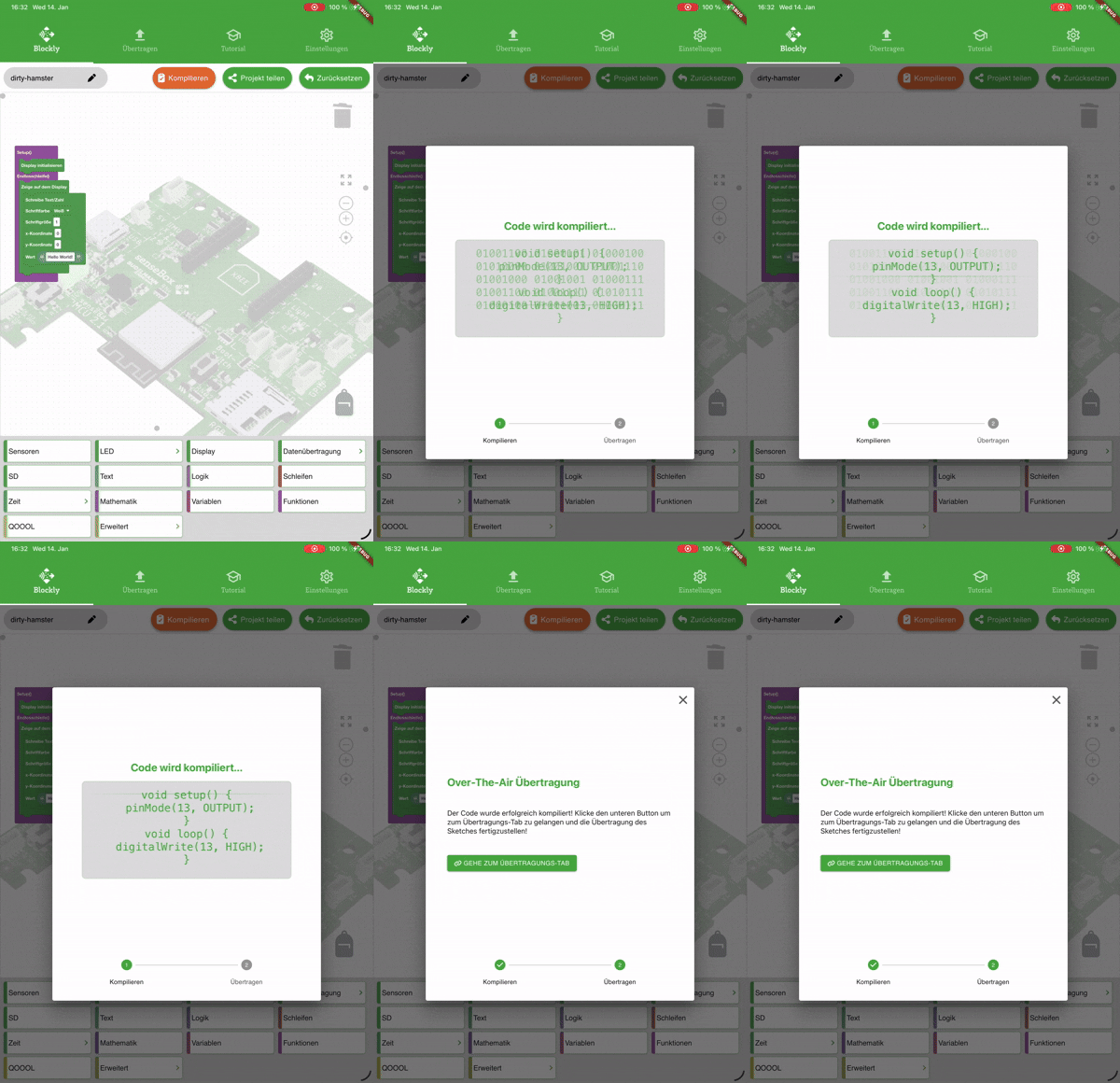
Open the senseBox Connect app and navigate to the "Blockly" tab.
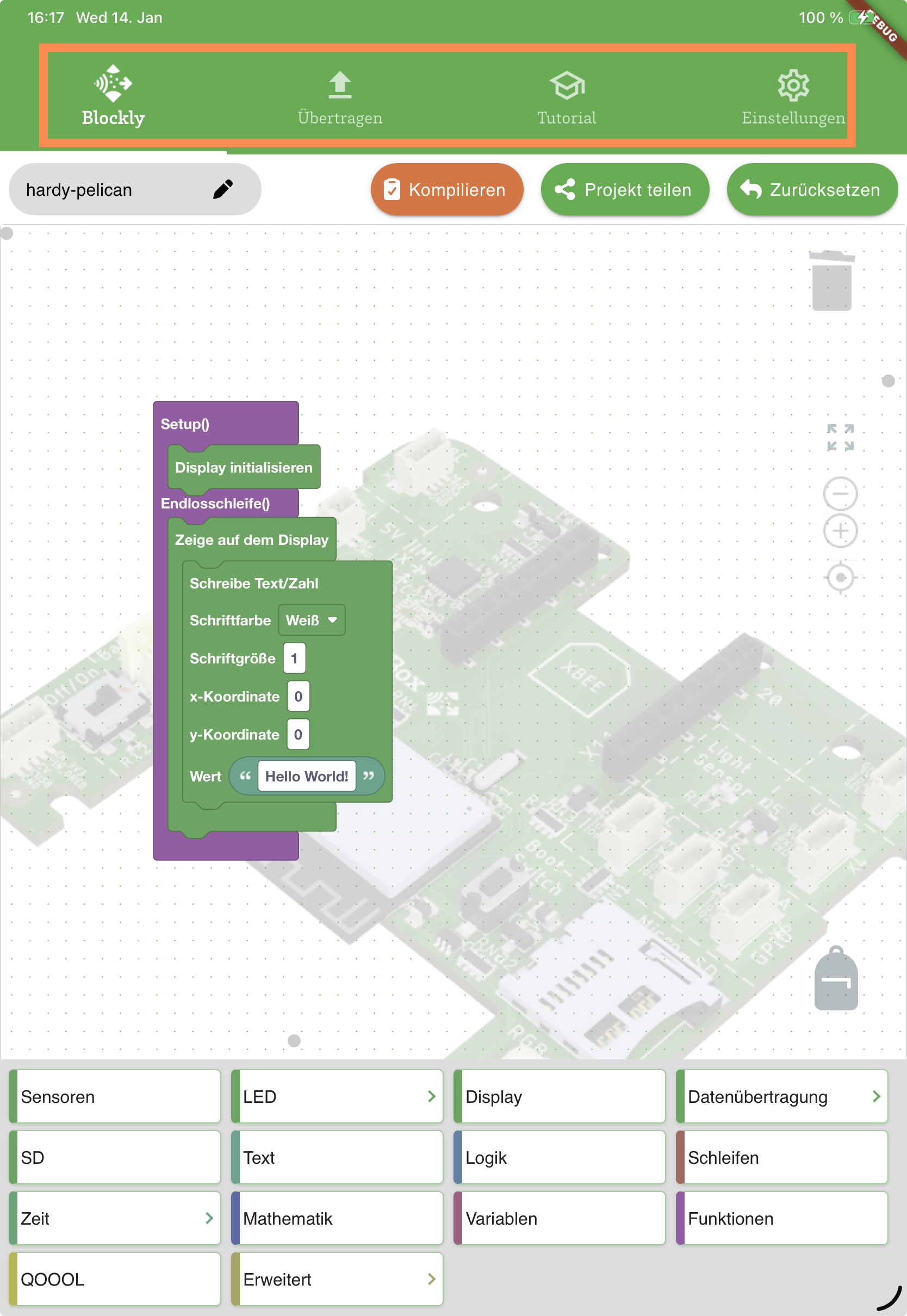
Create your Blockly program and then click on "Compile".
After the code has been successfully compiled and checked, click on "Go to transfer tab".
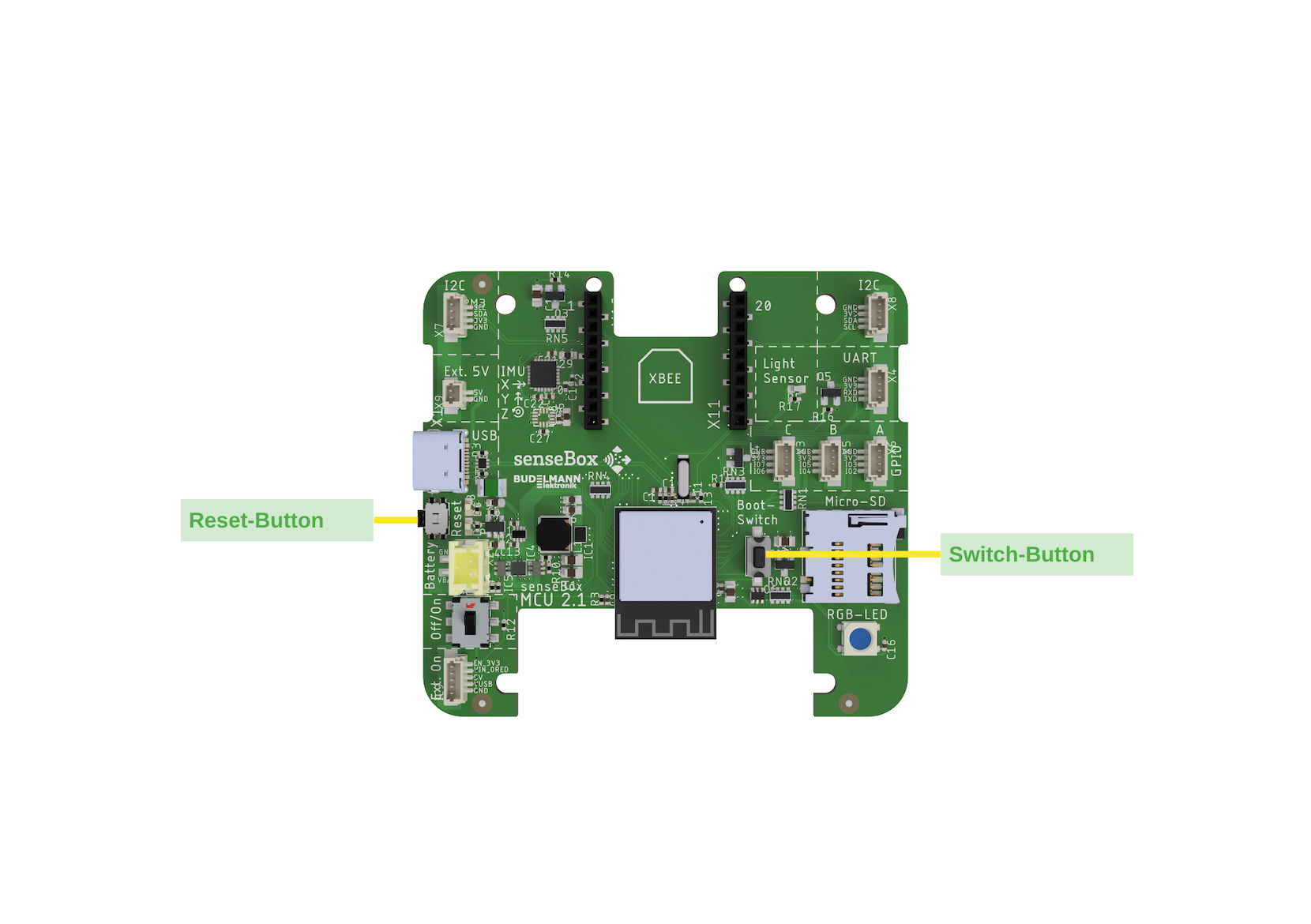
Now put your MCU into OTA mode. Press and hold the switch button while pressing the reset button once. Keep holding the switch button for about 3 seconds and wait until the green LED starts blinking. This video also shows how to activate OTA mode.
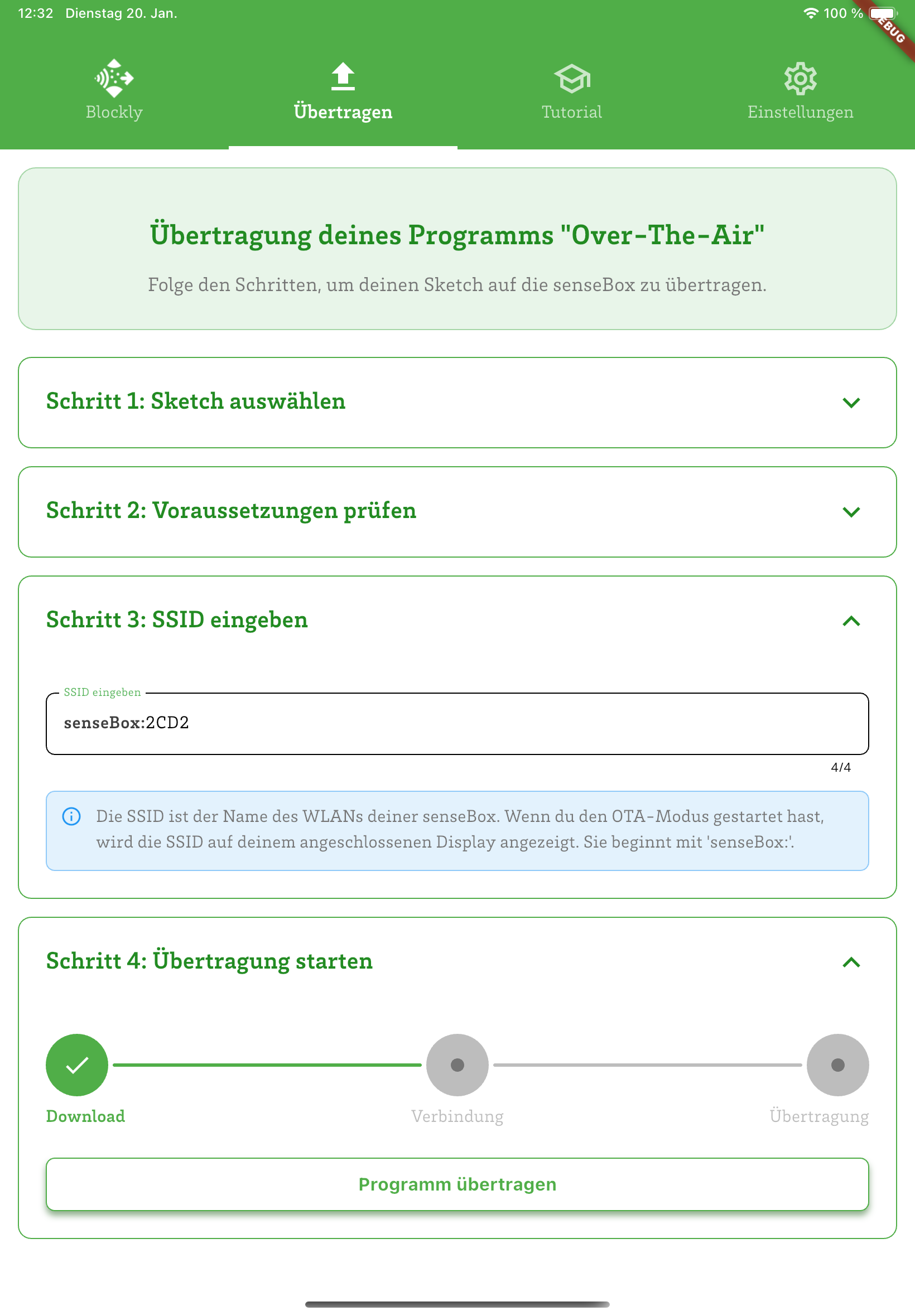
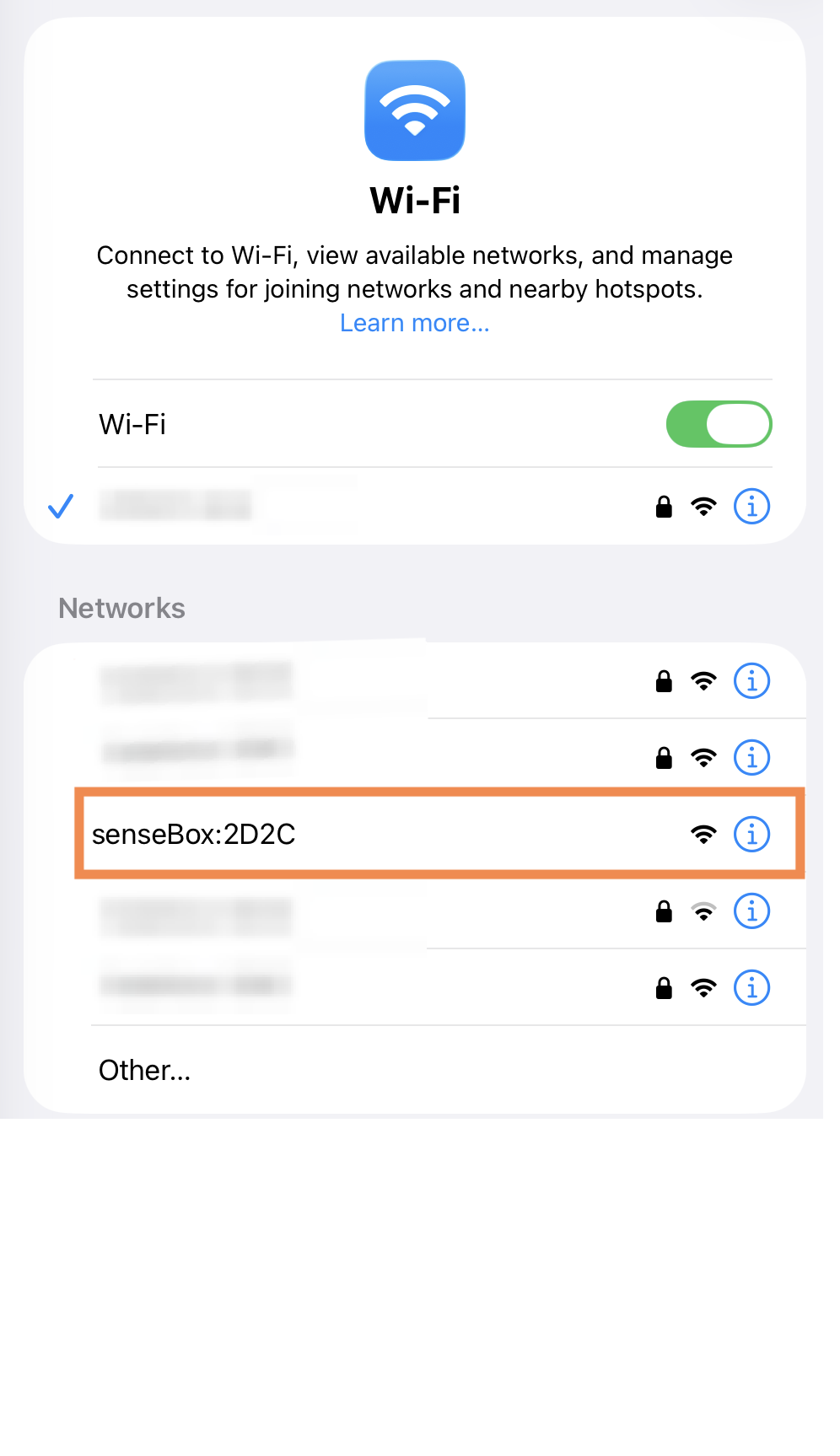
Now enter the SSID you noted in step 1 and then click on "Transfer program". Alternatively, you can look for a network named "senseBox:" in the network settings of your tablet to find the SSID.
Now click on "Transfer program". The app will ask whether the tablet should connect to the specified WiFi network. Confirm this and wait until the program has been transferred.
To use the senseBox app for transferring program code, you first need to complete a few preparation steps.
Anweisungen auf flash.sensebox.de folgen und die senseBox MCU-S2 für die Over-The-Air (OTA) Übertragung vorbereiten.
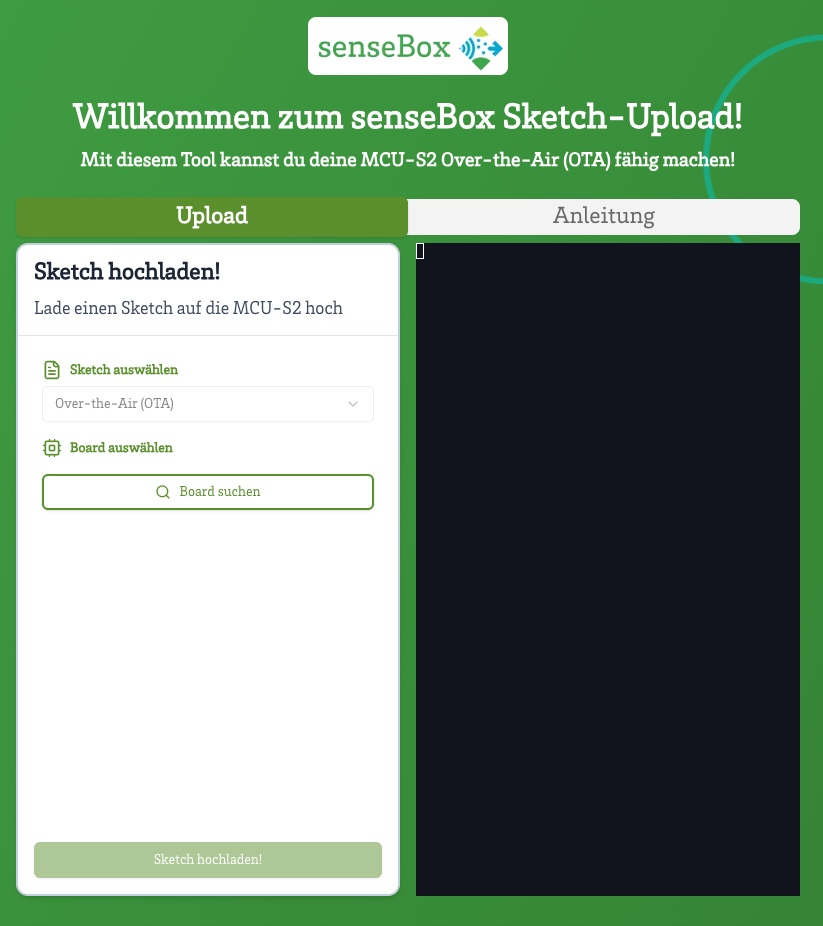
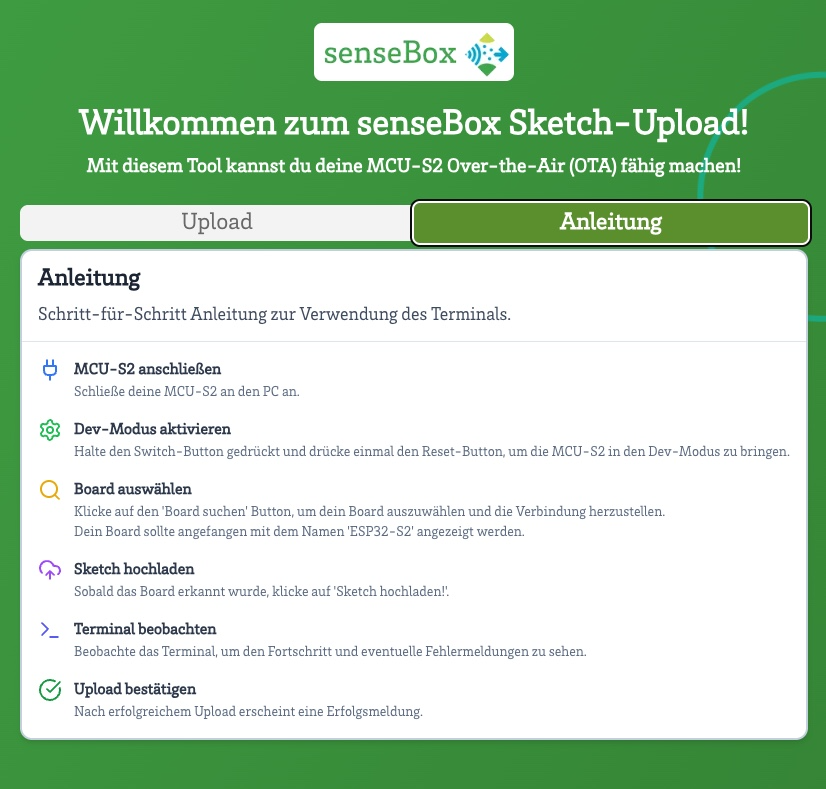
Open the senseBox Connect app and navigate to the "Blockly" tab.
Create your Blockly program and then click on "Compile".
After the code has been successfully compiled and checked, click on "Go to transfer tab".
If you have connected a display, the network name (SSID) should now be shown on it. Alternatively, you can check your network settings to see which name your senseBox uses (it always starts with "senseBox:"). Enter the network name in the "Transfer" tab in step 3.
Activate OTA mode on your MCU-S2 by first pressing the reset button once. Then briefly press the switch button. After a few seconds, the RGB LED should light up blue and the required SSID should be shown on the display.
If you have connected a display, the network name (SSID) should now be shown on it. Alternatively, you can check your network settings to see which name your senseBox uses (it always starts with "senseBox:"). Enter the network name in the "Transfer" tab in step 3.
Now click on "Transfer program". The app will ask whether the tablet should connect to the specified WiFi network. Confirm this and wait until the program has been transferred.